How to Find and Replace Text Across All Your Ghost Posts
Suggested meta description: Ghost has no built-in find and replace. Here's how to bulk edit Ghost posts and replace text across your whole site in seconds — no JSON exports, no scripts.
You renamed your product. You moved to a new domain. You spelled "newsletter" as "newletter" in what turns out to be 40 published posts. In almost any writing tool, this is a five-second job: hit find and replace, type the old text, type the new text, done.
In Ghost CMS, find and replace doesn't exist. There's no replace button in the editor, and no way to bulk edit the text inside your posts from the admin dashboard. So the "quick fix" turns into opening every post one by one — or something far more dangerous.
This guide covers why Ghost makes this so hard, the risky workarounds people resort to, and the simple way to find and replace text across all your Ghost posts without ever leaving Ghost Admin.
Why find and replace is surprisingly hard in Ghost CMS
Ghost is a fantastic publishing platform, but it was built for writing one post at a time, not for editing many at once. Three gaps make text replacement painful:
- There's no replace in the editor. The Koenig editor has no find-and-replace panel at all. You can press Ctrl+F (or Cmd+F) to find text on the page using your browser, but there's no way to replace it — and that only searches the post you currently have open.
- You can't bulk edit post content. The admin post list does let you select multiple posts and run bulk actions — add or remove tags, change the author, change access, unpublish, or delete. But none of those actions touch the words inside your posts. The one thing you actually want — swapping a phrase across many posts — isn't on the menu.
- So a one-word change becomes a site-wide chore. Change a brand name that appears in 50 posts and, by default, you're opening 50 posts, finding the phrase, editing it, and saving — 50 times.
The manual workarounds (and why they hurt)
When people hit this wall, they usually reach for one of three workarounds. All of them work in theory. All of them carry real risk.
1. Export, edit the JSON, re-import
You can go to Settings → Export to download your entire site as a single JSON file, open it in a text editor, run a find and replace there, and re-import it.
The problem: that file contains your whole site, and post content is stored as structured Lexical/mobiledoc data, not plain prose. One stray character and the import fails. Re-importing can also duplicate or overwrite posts if you're not careful. It's a lot of risk for a small text change.
2. Write a script against the Ghost Admin API
If you can code, you can fetch every post through the Ghost Admin API, run a regular-expression replace, and write each post back. This is powerful and precise — but it requires developer skills, an API key, and very careful testing so a bad regex doesn't quietly mangle your content.
3. Edit the database directly
On self-hosted Ghost, you can technically run SQL against the database. This is the most dangerous option of all: content is stored as serialized JSON, a wrong query can break your site, and there's no undo. Avoid this unless you really know what you're doing and have a fresh backup.
Notice the common theme: every workaround means leaving Ghost, handling raw data, and hoping everything goes back together cleanly.
The simple way: find and replace inside Ghost Admin with Postmancer
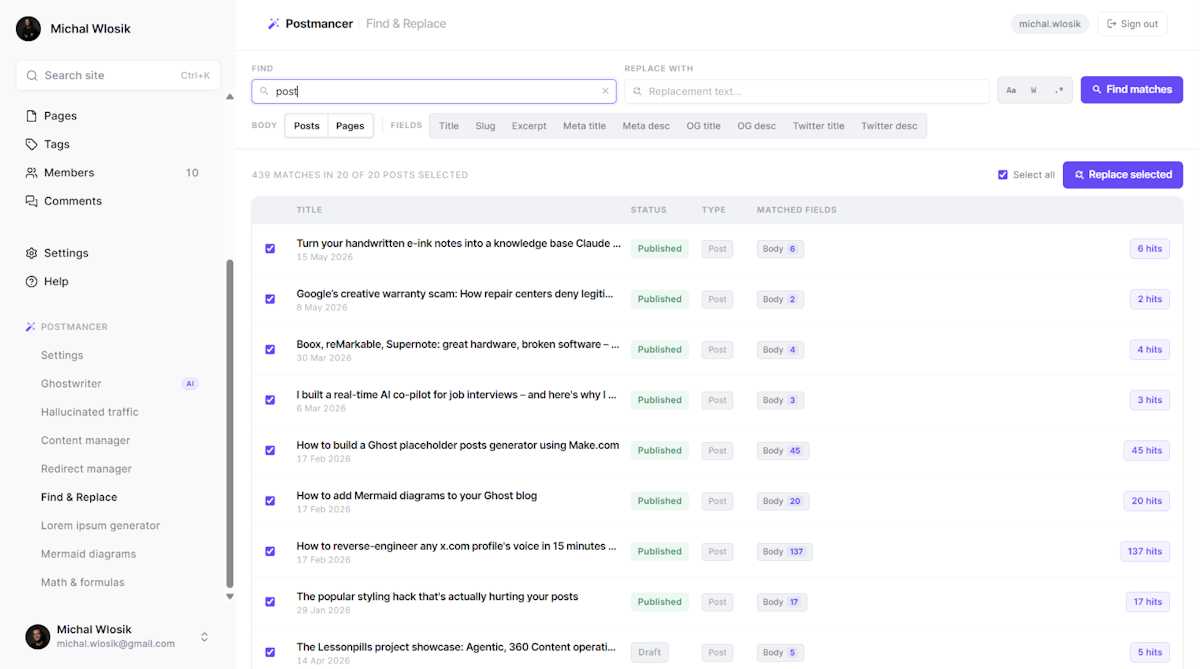
Postmancer is a Chrome extension that adds a sidebar directly inside Ghost Admin. One of its tools is Find & Replace, which searches across your entire Ghost archive — published posts, drafts, and pages — and swaps text in place in a single operation. No exports, no scripts, no database surgery. It's included free, with no AI credits required to use it.
Here's the whole workflow.
Step by step
- Install Postmancer and connect your site. Add the extension, click the Postmancer icon, and connect using your Ghost site URL and Admin API key. The sidebar appears inside Ghost Admin. (Full setup is in the Postmancer help guide.)
- Open Find & Replace from the Postmancer sidebar.
- Type the text you want to find. Postmancer scans every post and shows each match alongside the post it lives in, so you can see the full scope of the change before you make it.
- Review the matches. This is the safety net the manual methods don't give you — you know exactly what will change and where.
- Enter your replacement text.
- Apply the change. Postmancer writes the edits back to your posts through the Ghost API. What would have been an afternoon of manual editing takes seconds.
A few tips before you hit replace
- Always review matches first. Reading the list of affected posts takes a moment and prevents surprises.
- Watch for partial matches. Replacing
catwill also hitcategoryandcatalog. Use distinctive, whole phrases where you can. - Mind capitalization. "Ghost" and "ghost" are different strings — decide whether case matters for your replacement.
- Back up first. Run Settings → Export before any large change. It's a good habit for any bulk edit, regardless of the tool.
Beyond find and replace: other bulk jobs Postmancer handles
Text replacement is rarely the only cleanup task. A few related tools live in the same sidebar:
- Redirect Manager — when you change slugs or URLs, set up redirects so old links don't 404.
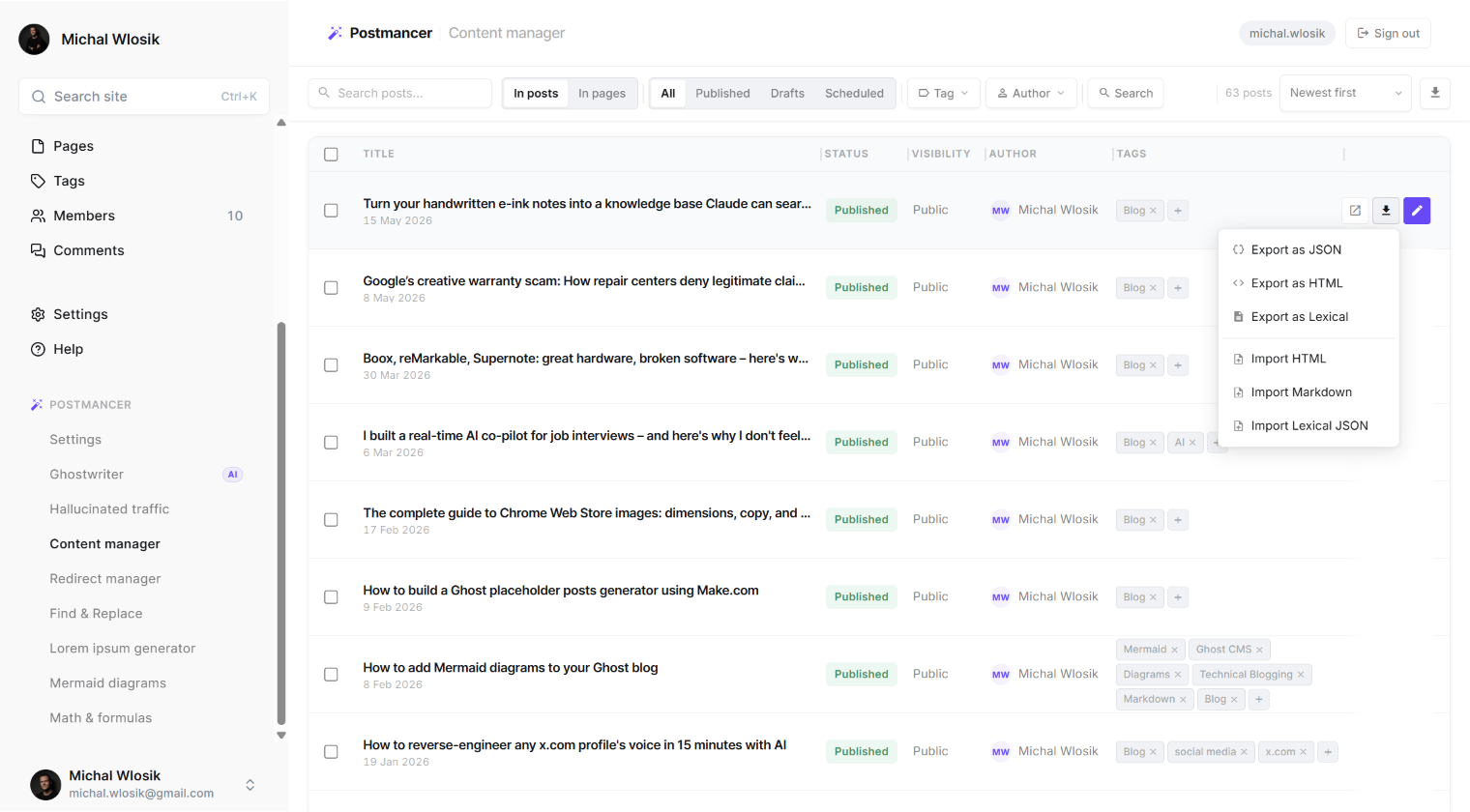
- Content Manager — browse and filter every post in one bulk view.
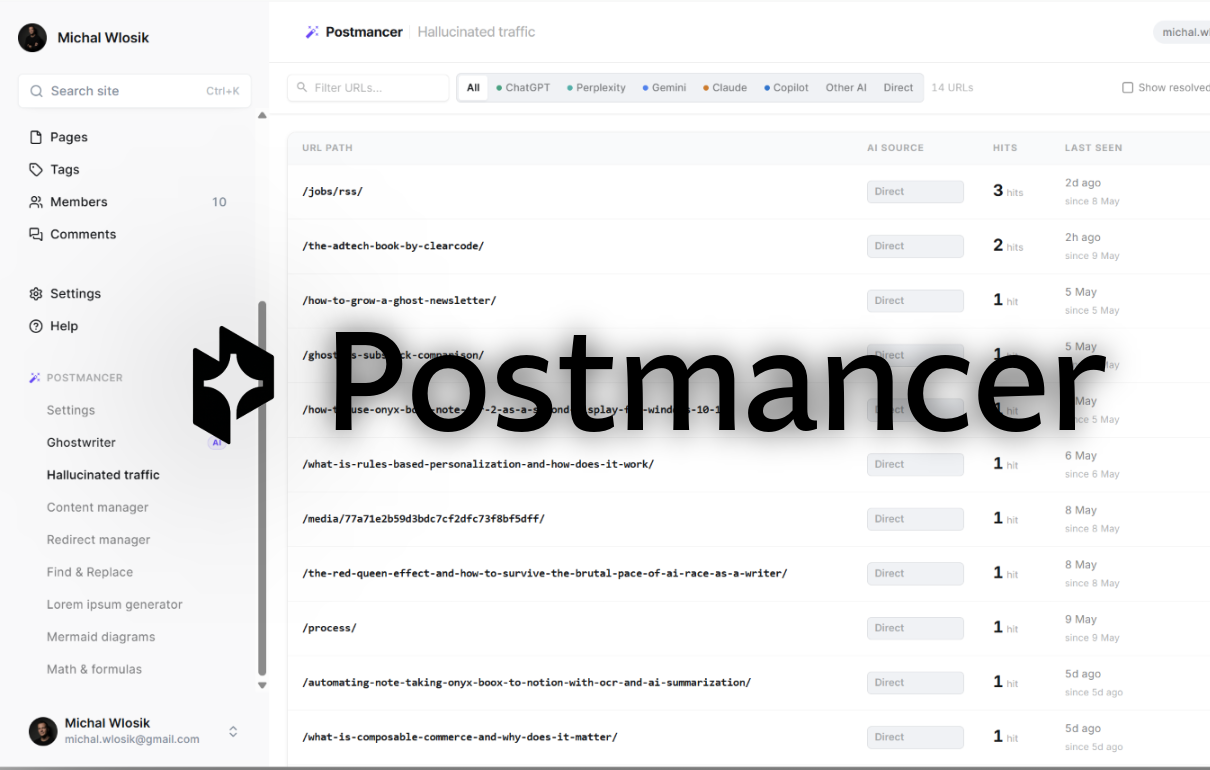
- AI Traffic Insights — see which pages AI chatbots like ChatGPT and Perplexity are sending readers to, including links to pages that don't exist.
Wrapping up
Find and replace shouldn't require a JSON export, a custom script, or a risky database query. Ghost simply doesn't ship with it — but you can add it. With Postmancer's Find & Replace, you can bulk edit Ghost posts and update text across your entire site from inside Ghost Admin, in seconds.
Install Postmancer free from the Chrome Web Store and turn your next site-wide rename into a one-step job.