How to Set Up Redirects in Ghost (Without Touching a YAML File)
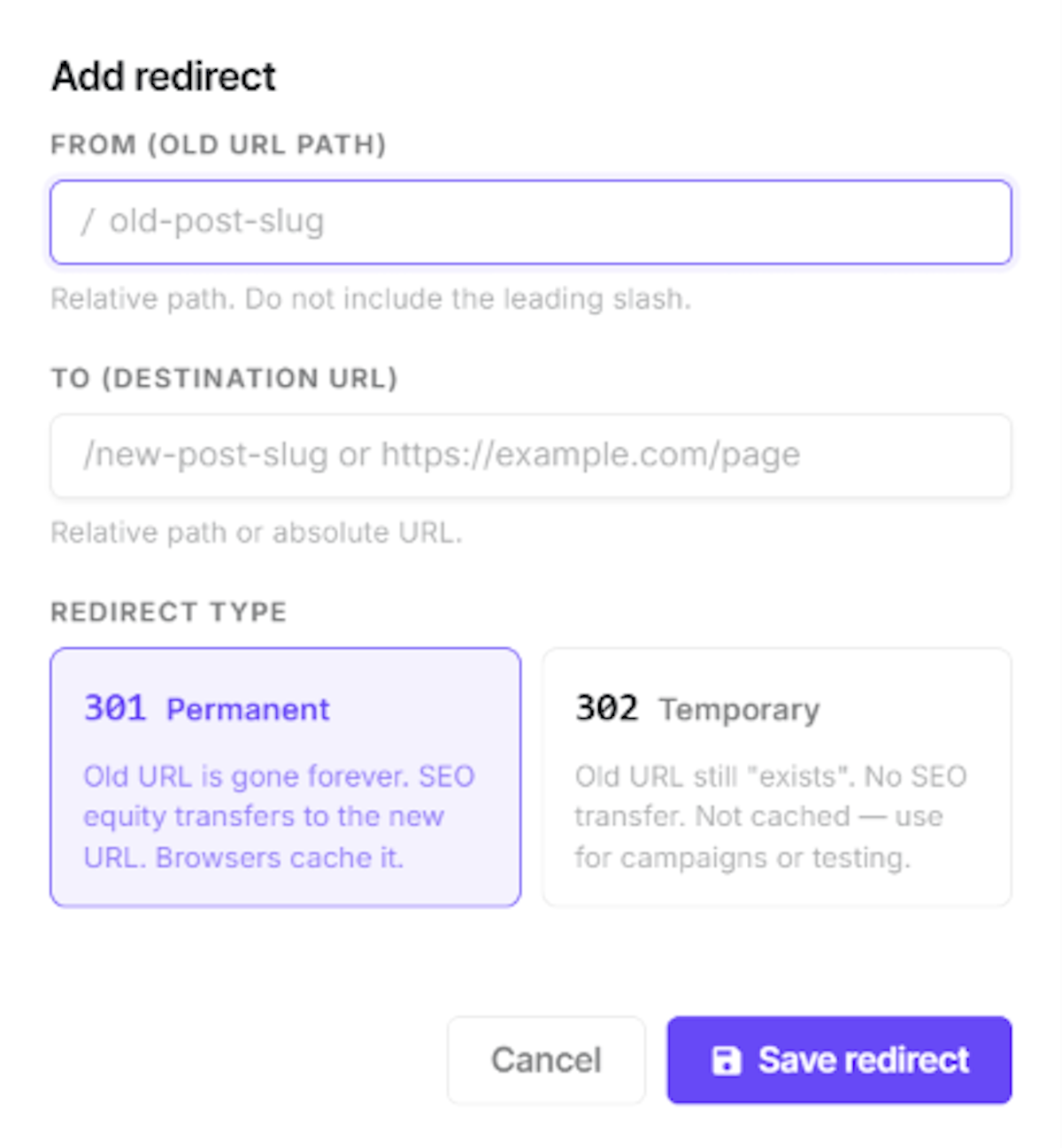
You changed a post's slug, deleted an old article, or moved off another platform — and now there's a URL out there that leads nowhere. Visitors hit a 404 and leave. The fix is a redirect, and in Ghost that's more annoying than it should be. Here's the format if you want to do it by hand, and the one-click way if you don't.
First, use a 301 (not a 302)
A 301 says "this moved permanently." A 302 says "this is temporary." For a slug change or a deleted post, you almost always want a 301 — Google uses a permanent redirect to show the new URL in search results, while a temporary one keeps the old URL there. And no, you won't lose ranking: permanent redirects don't cost you PageRank. Use a 302 only when you'll actually put the old page back.
The native Ghost way (and why it's a pain)
Ghost has no button for "redirect this URL." Instead, per the official docs, you:
- Go to Settings → Advanced → Labs.
- Download your
redirects.yamlfile. - Open it in a code editor and add rules by hand.
- Re-upload the whole file.
The file looks like this:
301:
  /old-post-slug/: /new-post-slug/
  /2021/old-category/: /blog/
302:
  /summer-sale/: /shop/
You can even use regex for a bulk migration — handy if you're moving from /blog/post-name to /post-name:
301:
  ^/blog/(.*)$: /$1
It works, but watch two gotchas that trip everyone up: Ghost often downloads the file as redirects.json even though it needs a .yaml extension to upload, and YAML demands spaces, not tabs. Get either wrong and you get a vague "cannot fetch redirects" error. Worse, every single change means downloading, editing, and re-uploading the entire file — there's no way to add just one redirect.
The easy way: do it inside Ghost Admin
Postmancer's Redirect Manager skips all of that. You create, view, and delete redirects straight from Ghost Admin — no file, no code editor, no SSH, no .yaml vs .json headaches.
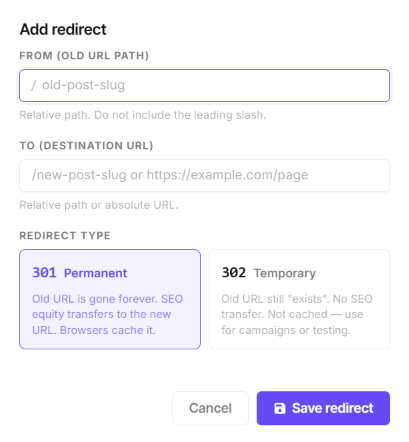
Type the old path, type where it should go, pick 301 or 302, save. Done. The redirect is live and you never left your browser.
When you'll actually need this
- You renamed a slug. Ghost doesn't auto-redirect the old one. Point it at the new slug or readers (and Google) hit a dead end.
- You deleted or merged posts. Send the old URL to the closest surviving post, not just the homepage — a relevant page is better for readers and keeps the link equity useful.
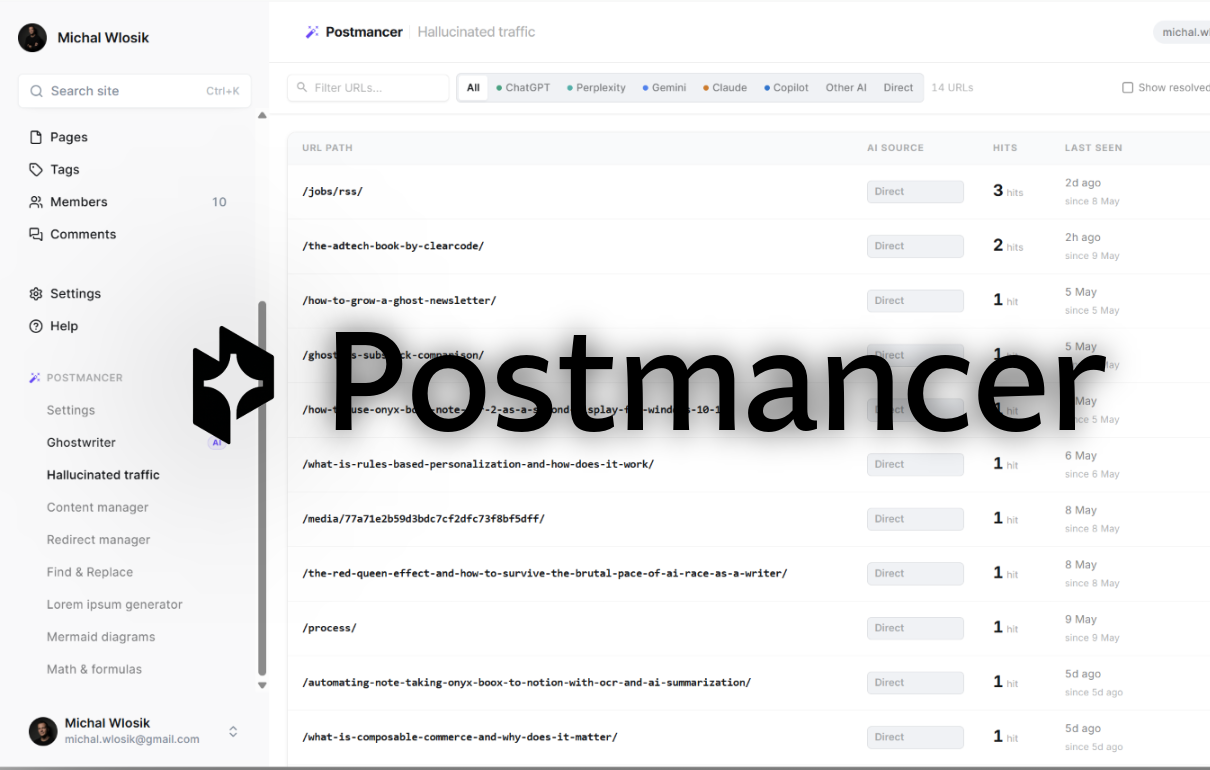
- AI is sending people to pages you never wrote. ChatGPT and Perplexity confidently link to URLs they assume exist. Postmancer's AI Traffic Insights shows you exactly which made-up URLs are getting hits, so you can redirect them to a real page and catch traffic you'd otherwise lose.
- You migrated to Ghost. Old platform, different URL structure? A few regex 301s map the old paths to the new ones in one go.
Three rules to not mess it up
- Redirect to the most relevant page, not the homepage. A homepage redirect reads like a dead end to both readers and search engines.
- Avoid chains. Don't send A → B → C. Point A straight at C.
- Leave 301s in place. Google needs to see a redirect a few times to record it — the recommendation is to keep it for at least a year, and longer if other sites still link to the old URL.
That's the whole thing. Use a 301 for permanent moves, send the old URL somewhere genuinely useful, and skip the YAML wrestling.
Install Postmancer free and add your next redirect in about ten seconds.
Sources
- Ghost — official redirects help (Settings → Advanced → Labs) and the implementing redirects tutorial
- Google Search Central — Redirects and Google Search (301 vs 302)
- Google Search Central — Site moves with URL changes (PageRank and keeping redirects in place)